Mastering Painterly Gouache Procreate Brushes for Authentic Digital Art
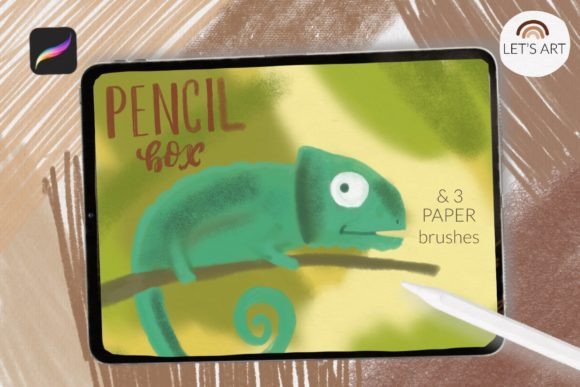
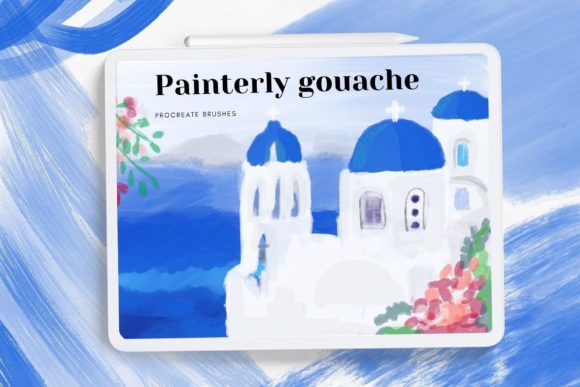
Digital art has evolved significantly, moving away from the sterile, vector-like perfection of early software toward rich, organic textures that mimic traditional media. Among these, gouache stands out for its unique matte finish and opacity. However, achieving this look on an iPad requires more than just a stylus; it demands tools that understand the physics of paint. This is where Painterly Gouache Procreate Brushes become essential. This specific brush set includes seven texture pressure-sensitive gouache brushes, ranging from classical wet applications to dry, scratchy strokes, along with a dedicated paper texture brush. For artists seeking authenticity, understanding how to properly integrate and utilize these tools is critical to avoiding common pitfalls that can hinder creative flow.
The Misconception of "Plug-and-Play" Realism
A frequent mistake among beginners and even some experienced digital artists is the assumption that downloading a high-quality brush set automatically guarantees professional results. Many users install Gouache texture brushes for iPad Procreate and immediately begin drawing with default settings, only to find the output looks muddy or inconsistent. The issue rarely lies with the brush itself but rather with the user’s misunderstanding of pressure sensitivity and layer interactions.
These seven brushes are designed to be pressure-sensitive, meaning the weight of your Apple Pencil directly influences the opacity and spread of the pigment. If you press too hard without adjusting your hand pressure, you may lose the delicate granulation that defines gouache. Conversely, pressing too lightly might result in strokes that disappear entirely. To avoid this, take time to test each brush on a blank canvas. Observe how the classical brushes blend compared to the dry brushes. The dry variants are particularly useful for adding texture over base layers, but they require a lighter touch to prevent harsh, unintended scratches.
Overlooking the Importance of Paper Texture
Another commonly overlooked detail is the role of the substrate. Traditional gouache relies on the tooth of the paper to hold the pigment. In digital art, a perfectly smooth white background can make even the best brushes look flat and artificial. This brush set includes one paper texture brush specifically designed to solve this problem. Yet, many users ignore it or apply it incorrectly.
A better approach is to create a separate layer at the bottom of your stack and apply the paper texture there before you begin painting. This provides a consistent grain that interacts with the gouache brushes above it, enhancing the illusion of physical paint. Some artists mistakenly apply the texture on top of their artwork, which can mute colors and reduce clarity. By placing the texture underneath, you allow the Painterly Gouache Procreate Brushes to react naturally to the surface, creating depth and realism that mimics traditional media.
Navigating Installation Challenges on Older Devices
Technical compatibility is a practical concern that often leads to frustration. It is crucial to note that this brush set is available for Procreate version 4.0 or earlier, but the installation method differs significantly from newer versions. Users with older iPads or outdated software often attempt to use the modern "Import" feature, which may not function as expected, leading to confusion and wasted time.
If you are using an older version of Procreate, do not rely on the standard import workflow. Instead, follow the manual installation process to ensure the files are recognized correctly. First, download the folder containing the .brush file to a accessible location on your iPad. Open the folder and locate the specific brush files. Tap and hold the file with your finger or Apple Pencil to bring up the context menu. Select "Share" from the options provided.
If you do not see "Open in Procreate" immediately, click on "More." Scroll through the list until you find the Procreate option and select it. Once the app opens, your project will load, and the brush should appear in your library. Alternatively, you can open Procreate first, create a new collection, and use the import function if your version supports it. However, the share method is often more reliable for legacy systems. Ensuring you follow these steps precisely prevents corruption of the brush data and ensures all seven brushes and the bonus color swatches are available for use.
Ignoring the Bonus Color Swatches
The inclusion of bonus color swatches is a valuable resource that many users discard or ignore. These swatches are curated to complement the gouache aesthetic, offering muted, earthy tones and vibrant mixes that replicate real-world pigment behavior. Relying solely on the default Procreate color wheel can result in colors that are too saturated or neon-like, breaking the illusion of traditional media.
Integrating these swatches into your workflow saves time and improves color harmony. Before starting a piece, import the swatches into your palette. Use them as a starting point for mixing custom shades. This practice not only speeds up the coloring process but also ensures that your artwork maintains a cohesive, painterly look. It is a small step that significantly elevates the final presentation.
Making Informed Decisions Before Purchase
Before investing time in learning any new tool, evaluate whether it fits your artistic goals. Painterly Gouache Procreate Brushes are ideal for illustrators, concept artists, and hobbyists who prefer a hand-painted aesthetic. They are less suitable for those seeking clean, vector-style graphics or hyper-realistic photo manipulation. Understanding this distinction helps manage expectations and ensures satisfaction.
Check your device compatibility and Procreate version before downloading. Ensure you have sufficient storage space for the brush set and associated files. Read the installation instructions carefully, especially if you are using an older iPad. By addressing these practical details upfront, you avoid technical hurdles and can focus on what matters most: creating beautiful, textured art.
In conclusion, mastering these brushes requires patience and attention to detail. Avoid the trap of expecting instant perfection. Instead, experiment with pressure, utilize the paper texture layer, and leverage the bonus swatches. With the right approach, these tools can transform your digital workflow, offering the tactile satisfaction of traditional gouache with the convenience of the iPad. © Let s Art ♡.