Mastering Hand-Drawn Aesthetics with Digital Pencil Procreate Brushes
There is a distinct gap between the sterile perfection of vector lines and the organic warmth of traditional media. For digital artists, bridging that gap often feels like an uphill battle against the glass screen of an iPad. This is where Digital Pencil Procreate Brushes transform the workflow, offering a tactile experience that mimics the friction, grain, and unpredictability of real-world drawing tools. By integrating specific texture algorithms, these brushes allow creators to produce work that feels lived-in and authentic, rather than digitally manufactured.
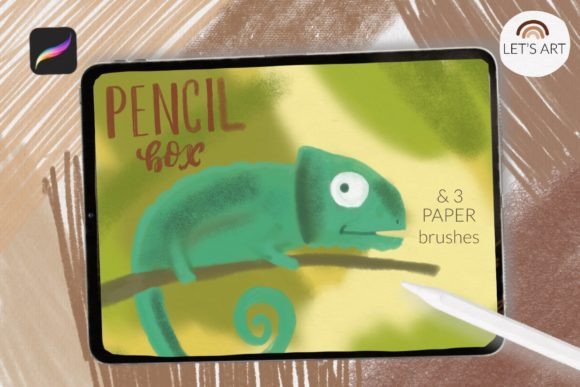
The core appeal of this toolset lies in its versatility. It is not merely about drawing a line; it is about how that line interacts with the virtual surface beneath it. Whether you are sketching character concepts, illustrating children’s books, or designing packaging labels, the ability to switch seamlessly between a soft graphite feel and a gritty charcoal stroke can define the entire mood of a piece. The inclusion of six distinct texture brushes—ranging from smooth pencil to doodle pencil—provides a comprehensive toolkit for various stages of the artistic process, from initial roughs to final polished details.
Real-World Applications Across Creative Industries
Understanding the utility of these brushes requires looking beyond general illustration. Different professionals leverage texture to solve specific visual problems. For concept artists in the gaming and film industries, speed and readability are paramount. The hard pencil and smooth pencil options allow for rapid ideation without getting bogged down in rendering too early. These tools provide enough resistance to feel natural but remain clean enough for team members to interpret clearly during brainstorming sessions.
In contrast, editorial illustrators and book designers often need to evoke nostalgia or warmth. Here, the charcoal pencil and soft pencil become indispensable. They introduce a level of noise and grain that softens harsh digital edges, making illustrations feel more approachable and human. This is particularly effective in children’s literature, where a sterile, vector-like aesthetic might feel cold or impersonal. By using these textured strokes, artists can create characters that feel like they were drawn by hand, fostering a deeper emotional connection with the reader.
Graphic designers working on branding projects also benefit significantly. The doodle pencil brush is excellent for creating custom icons, handwritten logos, or informal annotations that add personality to corporate materials. It breaks the monotony of standard typography and adds a layer of craftsmanship that consumers often associate with quality and care. Furthermore, the seamless background brushes included in the set—featuring paper, craft paper, and watercolor paper textures—allow designers to place their digital artwork onto realistic surfaces instantly. This eliminates the need for external photo editing software to composite textures, streamlining the presentation process for client pitches.
Navigating Texture and Workflow Considerations
While the benefits are clear, adopting textured brushes requires a shift in mindset. Unlike standard round brushes that behave predictably regardless of zoom level, texture brushes interact with the canvas resolution. Artists must consider the scale of their work. A brush that looks perfectly gritty at 100% zoom may appear overly noisy or pixelated when scaled up for large-format printing. Therefore, it is crucial to test the Digital Pencil Procreate Brushes at the final output size early in the project.
Another consideration is layer management. Textured brushes often rely on blending modes and opacity settings to achieve their realistic look. Overusing them on a single layer can result in a muddy appearance. Experienced users typically separate their sketching, lining, and shading onto different layers. This allows for non-destructive editing, where the intensity of the charcoal grain can be adjusted independently of the underlying smooth pencil sketch. It also provides the flexibility to swap out background textures without affecting the integrity of the foreground artwork.
Users should also be aware of hardware limitations. While the iPad Pro is powerful, complex texture calculations can impact performance if the canvas size is excessively large or if too many high-resolution texture layers are active simultaneously. Keeping the workspace organized and merging layers when possible helps maintain a smooth drawing experience. Additionally, the choice of screen protector can influence the perceived effectiveness of these brushes. A matte screen protector enhances the friction, making the digital pencil feel more like graphite on paper, which complements the visual output of these specific brush sets.
Installation and Setup for Optimal Performance
Getting started with these tools is straightforward, but the method varies depending on your device and software version. It is important to note that this brushset is designed for Procreate version 4.0 or later. If you are using an older version, the brushset will not be compatible, and you may need to update your app or use individual brush files as a workaround.
For most users with modern iPads and updated software, the installation is seamless. However, for those with older devices or specific file management preferences, understanding the manual import process is essential. Here is how you can install the brushes if you have an older iPad or are dealing with individual .brush files:
- Download the folder containing the .brush file to a accessible location on your iPad, such as the Files app.
- Open the folder and locate the specific .brush files you wish to install.
- Tap and hold the file with your finger or Apple Pencil to bring up the context menu.
- Select Share from the available options.
- If you do not see "Open in Procreate" immediately, click on More to expand the list of apps.
- Scroll through the applications until you find Procreate, select it, and confirm the action.
- Once imported, open your project in Procreate and tap the brush icon in the top right corner to access your new tools.
Alternatively, there is a more direct method within the app itself that many users find quicker. You can open Procreate, create a new collection or select an existing one, and choose the import function. Navigate to the folder where you downloaded the brushset, select the files, and they will be added directly to your library. This method ensures that your brushes are organized from the start, preventing clutter in your default brush library.
Maximizing the Background Textures
A unique feature of this collection is the inclusion of three seamless background brushes: paper texture, craft paper texture, and watercolor paper texture. These are not just static images but functional brushes that can be painted across the canvas. This offers dynamic control over where the texture appears. Instead of applying a uniform overlay, artists can paint texture only where needed, such as adding a rough craft paper feel to a label design while keeping the rest of the composition clean.
The seamless nature of these brushes means they can tile infinitely without visible borders, making them ideal for pattern design or large-scale backgrounds. When combined with the pencil brushes, they create a cohesive aesthetic where the drawing and the surface feel like part of the same physical object. This integration is what elevates digital art from a simulation to a convincing artistic statement. By mastering both the drawing tools and the surface textures, artists can produce work that resonates with the authenticity of traditional media while retaining the flexibility and undo-button safety of the digital realm.
Ultimately, the value of Digital Pencil Procreate Brushes lies in their ability to remove the technical barriers between thought and creation. They allow the artist to focus on expression rather than fighting the software. Whether you are a seasoned illustrator looking to refresh your style or a beginner seeking a more intuitive drawing experience, these tools provide the necessary foundation to create meaningful, textured, and visually engaging art.