Master Sky Art with Clouds Procreate Brushes
The sky has always been the ultimate canvas for human imagination. From ancient myths to modern advertising, we look up to find meaning, romance, and wonder. For digital artists, however, capturing the ephemeral nature of clouds has traditionally been a technical hurdle. It requires a nuanced understanding of light, volume, and atmospheric perspective. This is where Clouds Procreate Brushes transform the workflow, turning a complex rendering task into an intuitive, joyful creative process. Whether you are illustrating a children’s book, designing a wedding invitation, or creating social media content, these tools allow you to paint the sky with the same ease as sketching on paper.
Romance Written in the Sky
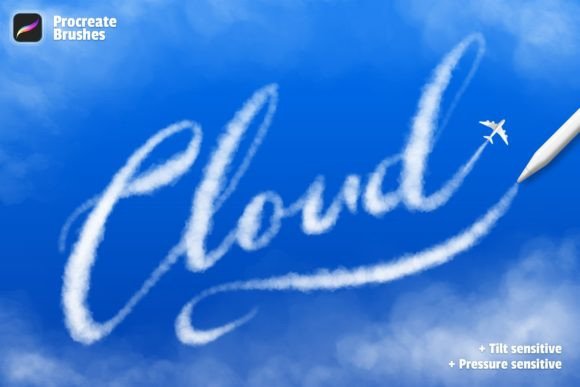
Imagine declaring your love or offering congratulations not through a text message, but through a masterpiece painted in the heavens. The concept of "skywriting" has long captivated audiences, but doing it digitally offers unlimited creative control without the cost of an airplane. With the specific cloud lettering brushes included in this set, you can craft messages that feel organic and dreamlike.
This approach adds a layer of emotional depth to personal projects. A proposal card featuring a custom cloud message feels infinitely more thoughtful than a store-bought alternative. Similarly, marketers can use this aesthetic to evoke feelings of freedom, aspiration, and clarity. The key is subtlety; the letters should look like they naturally formed from vapor, drifting gently against a blue backdrop. By using brushes that respond to pen pressure, you can vary the density of the "cloud," making some parts wispy and others substantial, mimicking how real cumulus formations catch the sunlight.
Beyond Letters: Versatile Creative Applications
While skywriting is a standout feature, the utility of Clouds Procreate Brushes extends far beyond typography. These tools are essential for any artist looking to enhance atmosphere in their work. Here is how different creators can adapt these brushes for their specific goals:
- Illustrators and Concept Artists: Use the background brushes to establish mood quickly. A stormy sky can foreshadow conflict in a narrative piece, while soft, pastel clouds can create a serene setting for character portraits. The tilt sensitivity allows for broad, sweeping strokes that cover large areas efficiently.
- Graphic Designers and Marketers: Incorporate realistic cloud elements into product photography or ad campaigns. Instead of relying on generic stock photos, you can paint custom cloud formations that frame your product, drawing the viewer’s eye exactly where you want it. This ensures originality and brand consistency.
- Educators and Content Creators: Create engaging visuals for presentations or educational materials. Clouds can serve as whimsical text boxes or decorative borders that make information more digestible and visually appealing for younger audiences.
The Technical Advantage: Realism Made Simple
What sets these brushes apart is their engineering. They are not merely static stamps; they are dynamic tools built to leverage the full capabilities of the Apple Pencil and iPad. The set includes seven distinct brushes, carefully categorized to streamline your workflow. Five are dedicated to cloud lettering, allowing for precise control over shape and form, while two are optimized for backgrounds, enabling rapid coverage and texture variation.
The integration of pen pressure and tilt sensitivity is crucial for achieving a realistic effect. When you press harder, the cloud becomes denser and more opaque; a lighter touch creates those delicate, translucent edges that define high-altitude cirrus clouds. Tilting the pencil changes the angle of the brush stroke, mimicking the way a traditional airbrush or soft pastel would behave. This responsiveness means you spend less time fiddling with opacity sliders and more time focusing on composition and artistry.
Furthermore, these brushes are designed for easy customization. If a particular cloud shape doesn’t quite fit your vision, you can adjust the settings within Procreate to tweak the scatter, size jitter, or flow. This flexibility ensures that no two artworks look identical, preserving the uniqueness of your creative voice.
Practical Workflow and Installation
Getting started with Clouds Procreate Brushes is straightforward, designed to minimize friction so you can start creating immediately. It is important to note that these brushes are compatible ONLY with the Procreate application on Apple iPad. They will not function in Adobe Photoshop, Clip Studio Paint, or other graphic editing software. This specialization allows the developer to optimize the brushes specifically for Procreate’s engine, ensuring maximum performance and fidelity.
To install and begin using the brushes, follow these simple steps:
- Download the file directly onto your iPad. Ensure the file is saved in a location accessible via the Files app.
- Locate the file named
Clouds_ by_Sko4 .brushset. - Tap on the file. Procreate will automatically launch and install the entire set.
- Open your brush library in Procreate. The new brushes will appear at the very top of your brush list, ready for immediate use.
Once installed, it is recommended to experiment with each of the seven brushes on a blank canvas. Test the pressure response by drawing lines that vary from faint whispers to bold statements. Try tilting your pencil to see how the brush shape shifts. This brief exploration will help you internalize how each tool behaves, making your actual project work smoother and more intuitive.
Maintaining Consistency and Quality
While these brushes simplify the creation of realistic clouds, maintaining artistic consistency requires mindful practice. When working on a larger piece, such as a book cover or a detailed illustration, keep your light source consistent. Clouds are three-dimensional objects; they have highlights and shadows. Even though the brushes provide the texture, you must manually add shading to ground them in your scene. Use a soft eraser or a low-opacity white brush to refine edges and blend the clouds into the background seamlessly.
For those using the lettering brushes, legibility is paramount. While the aesthetic is dreamy, the message must be clear. Avoid overly complex fonts if the background is busy. Contrast is your friend; ensure there is enough difference between the cloud color and the sky behind it. A deep blue sky works well with bright white clouds, while a sunset palette might require warmer, golden hues for the cloud text to stand out.
Unlocking Your Creative Potential
In a digital landscape often cluttered with rigid templates and artificial aesthetics, Clouds Procreate Brushes offer a return to organic beauty. They empower you to bring the vastness of the sky into your handheld device, giving you the power to craft moments of awe and connection. Whether you are writing a declaration of love in the clouds or building a fantastical world for your next design project, these tools provide the technical foundation you need to let your creativity soar. Embrace the simplicity, explore the possibilities, and let your art drift effortlessly into new heights.